Housecall Pro price book import errors, fixed
Your CSV won’t import, or worse, it imported wrong and now half your price book is missing categories or showing garbled text. Both are fixable, and almost always come down to one of five things: bad headers, an invalid category value, file encoding, missing required columns, or duplicate names.
Work through these in order. Most import failures are caused by one row, not the whole file. (New to the import flow entirely? Start with the full price book import guide.)
Error 1: Headers don’t match what HCP expects
What it looks like: The import runs but data lands in the wrong fields, columns show up empty, or the import rejects the file outright.
Why it happens:Housecall Pro maps your CSV to its price book fields using the header row, not the column order. HCP’s own export headers are lowercase and specific, things like industry_uuid, task_code, and online_booking_enabled. If you typed your own headers, renamed one, or capitalized something HCP exports in lowercase, the mapping can fail silently.
Fix:
- Export your current price book from HCP first, even if it’s just to grab a clean header row.
- Copy that exact header row into your new file rather than typing headers from memory.
- Don’t reorder columns and don’t rename them, even if the name looks like it could be improved. HCP matches by header text.
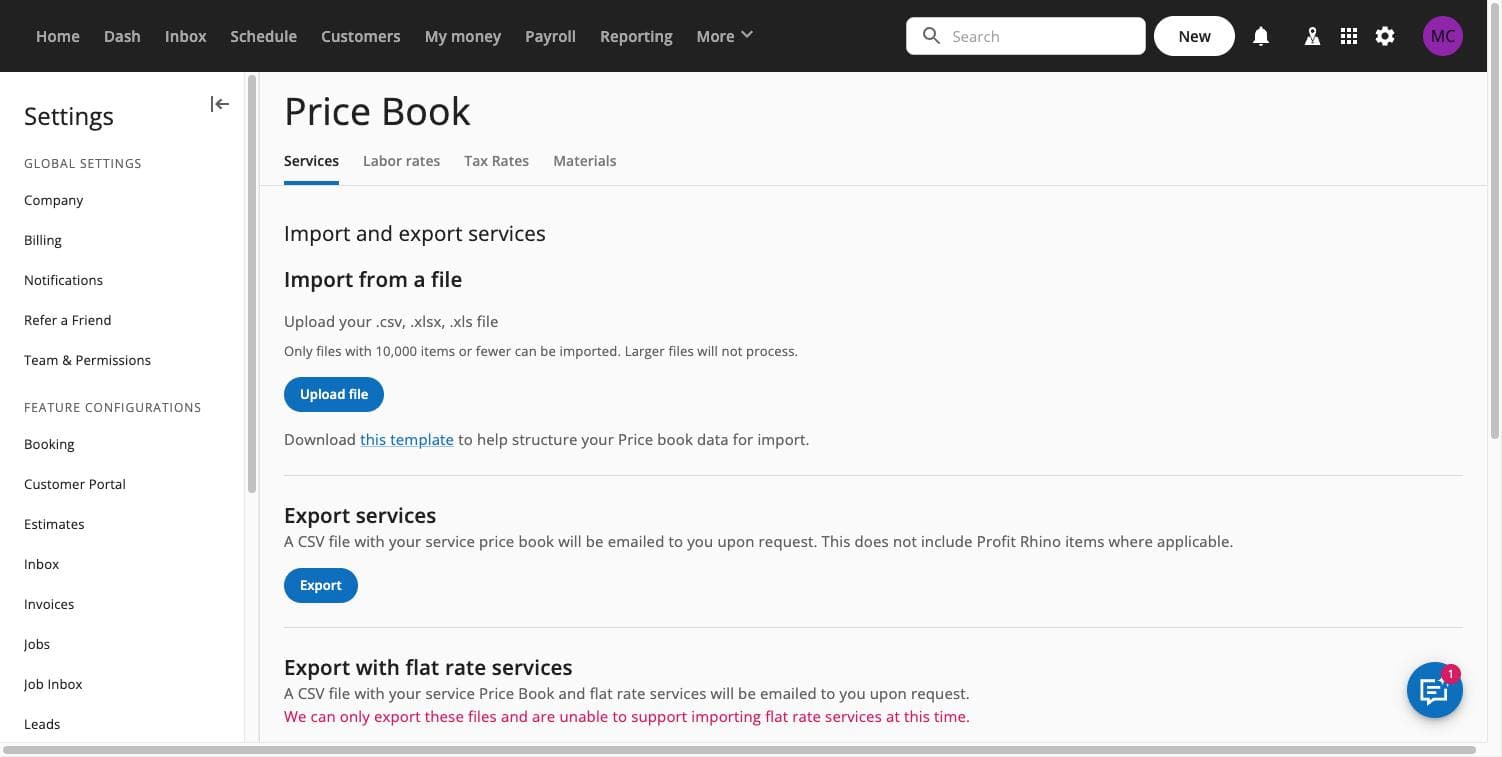
Error 2: Invalid Industry or category value
What it looks like: The whole import fails, or specific rows are silently dropped, with no obvious formatting problem in the row itself.
Why it happens:The Industry/category column has to match a value HCP already recognizes in your account. A typo, an extra space, a category that doesn’t exist in your account yet, or a blank cell in this column can cause that row to fail. Depending on how the file is structured, one bad category value can take down the entire import instead of just that row.
Fix:
- Open your account’s category list in Price Book settings and confirm the exact spelling and capitalization of each category you’re using.
- In your CSV, use exact matches. Copy-paste category names from an existing export rather than retyping them.
- Never leave this column blank. Every row needs a valid category value.
- If you’re introducing a brand-new category, create it in the HCP app first, then reference it in your import file.
Error 3: File encoding problems
What it looks like: Special characters show up as odd symbols (Â, ’, or boxes) in item names or descriptions, especially after editing in Excel.
Why it happens: CSV files need to be saved in UTF-8 encoding. Excel on Windows sometimes defaults to a different encoding when saving CSVs, which mangles apostrophes, degree symbols, and other non-basic characters.
Fix:
- In Excel, use “Save As” and choose “CSV UTF-8 (Comma delimited)” specifically, not the plain “CSV (Comma delimited)” option.
- In Google Sheets, File > Download > Comma-separated values (.csv) exports as UTF-8 by default, which is one reason it’s often more reliable for this than Excel.
- If you already have a mangled file, re-copy the affected text from a clean source rather than trying to hand-fix the symbols, they’re often not what they appear to be.
Error 4: Missing required columns
What it looks like: Import fails immediately, or items import with blank prices, missing descriptions, or no category.
Why it happens: Certain columns are required for HCP to create a valid price book entry. Leaving out a required column, or leaving required cells blank within a column, causes rows to fail or import incomplete.
Fix:
- Start from an actual HCP export so every required column is already present.
- Check every row for blanks in the columns that matter most: name, price, and category at minimum. Materials also need
part_number. - If a column doesn’t apply to a given row (for example, a service row in a materials-specific column), leave the cell empty rather than deleting the column entirely, deleting the column will break the header mapping for every other row.
Error 5: Duplicate names
What it looks like:Fewer items imported than expected, or existing items got overwritten with data you didn’t intend to change.
Why it happens:If two rows in your file share the same name, or if a row’s name matches an existing price book item, HCP may treat it as an update to the existing item instead of a new one. This is useful when you mean to update pricing, but it causes real problems when it happens by accident.
Fix:
- Before importing, sort your CSV by name and scan for duplicates.
- Decide deliberately: if you want the import to update an existing item, keep the name identical. If you want a new, separate item, make the name unique.
- Export your current price book first so you have a clean before-and-after to compare if items get overwritten unexpectedly.
Still not importing?
If you’ve checked all five and the file still won’t go in, rebuild the file from a fresh HCP export rather than continuing to patch the broken one. Copy your line items into the clean export’s structure instead of trying to fix headers and formatting after the fact. It’s usually faster than debugging cell by cell.
Frequently asked questions
Why did my whole price book import fail instead of just the bad rows?
Because HCP validates the file structure before processing individual rows, a bad Industry/category value or a missing required column can invalidate the whole file, not just the offending row.
Do I need to match HCP’s exact header names?
Yes. HCP maps your CSV columns by header text, so headers need to match exactly, including lowercase formatting like industry_uuid and task_code.
Can Excel cause import errors even if my data looks fine?
Yes, most often through encoding. If you save as regular “CSV (Comma delimited)” instead of “CSV UTF-8,” special characters like apostrophes and degree symbols can get corrupted even though the file opens fine in Excel.
What’s the safest way to avoid all of these errors?
Always start from a fresh export of your own account rather than a hand-built file, and check your Industry/category values against your live account before importing.
Get it right the first time
Skip the trial-and-error entirely. Start from the free HVAC price book template, which is already formatted with valid headers, or run your file through the Margin Leak Finder to catch pricing problems before you re-import. Your data never leaves your browser. If you’d rather not touch the CSV at all, The Margin-Right Rebuild is a $249 one-time service: we rebuild your full price book at your target margins and hand you an import-ready file, backed by our 60-Day Ticket-Lift Guarantee: If your average ticket doesn't go up within 60 days of importing your new price book, we refund the full price — and you keep every file.