How to import a price book (Services) into Housecall Pro
If you’re staring at a CSV file trying to figure out why Housecall Pro won’t take your price book, you’re in the right place. Importing a price book into HCP works on every plan tier, no API access required. You just need the file formatted the way HCP expects.
This walks through the full import, start to finish, plus what to do if you don’t have a clean price book to import yet. One naming note up front: inside HCP, the thing you’re importing is mostly called Services.
Housecall Pro Services: what HCP calls your price book
If you went looking for “price book” in Housecall Pro and kept landing on “Services,” that’s because they’re the same thing in practice. The HCP Price Book has two tabs. Services holds your labor tasks, the flat-rate line items your techs pick on an estimate or invoice. Materials holds parts. Each tab has its own export and import, and each takes its own file.
The difference matters when you build the CSV. A service row needs an Industry value, then a category, a name, and a price. A material row has no Industry column and carries parts-specific fields instead. So when a contractor says they’re “importing their price book,” they almost always mean the Services file. That’s where the pricing decisions live, and it’s the file this guide walks through.
Housecall Pro for HVAC: setting up HVAC services
For an HVAC shop, every service row carries HVAC in the Industry column, and your categories sit under it: maintenance, diagnostics, repairs, installs, whatever split your techs actually use. The Industry value has to match an industry that already exists on your account exactly. A typo there is one of the most common reasons a whole file gets rejected.
What HCP doesn’t give you is the list itself. Choosing HVAC sets up the structure, but no one hands you capacitor swaps, drain line clears and tune-ups priced at your labor rate. HCP’s paid price book add-on gives you a better place to organize that list, not the prices in it (the price book add-on review covers what it does and doesn’t do). So you either build the list yourself or start from a template and fix the prices. Either way, check the numbers against your real costs before you import. A clean import of a book priced wrong just gets you to the wrong price faster.
Before you start: get your file ready
Housecall Pro imports price books as a CSV file. Every row is one line item (a service or a material), and every column has to match a header HCP recognizes. If you’re building this from scratch, don’t start with a blank spreadsheet — pull HCP’s own export first (Price Book settings, then export) so you inherit the exact column structure, or use a preformatted starting point.
If you don’t have an existing price book to export, grab the free HVAC price book template. It’s already formatted with the right headers and sample line items, so you can drop in your own services and pricing without guessing at column names.
Step 1: Open Price Book settings
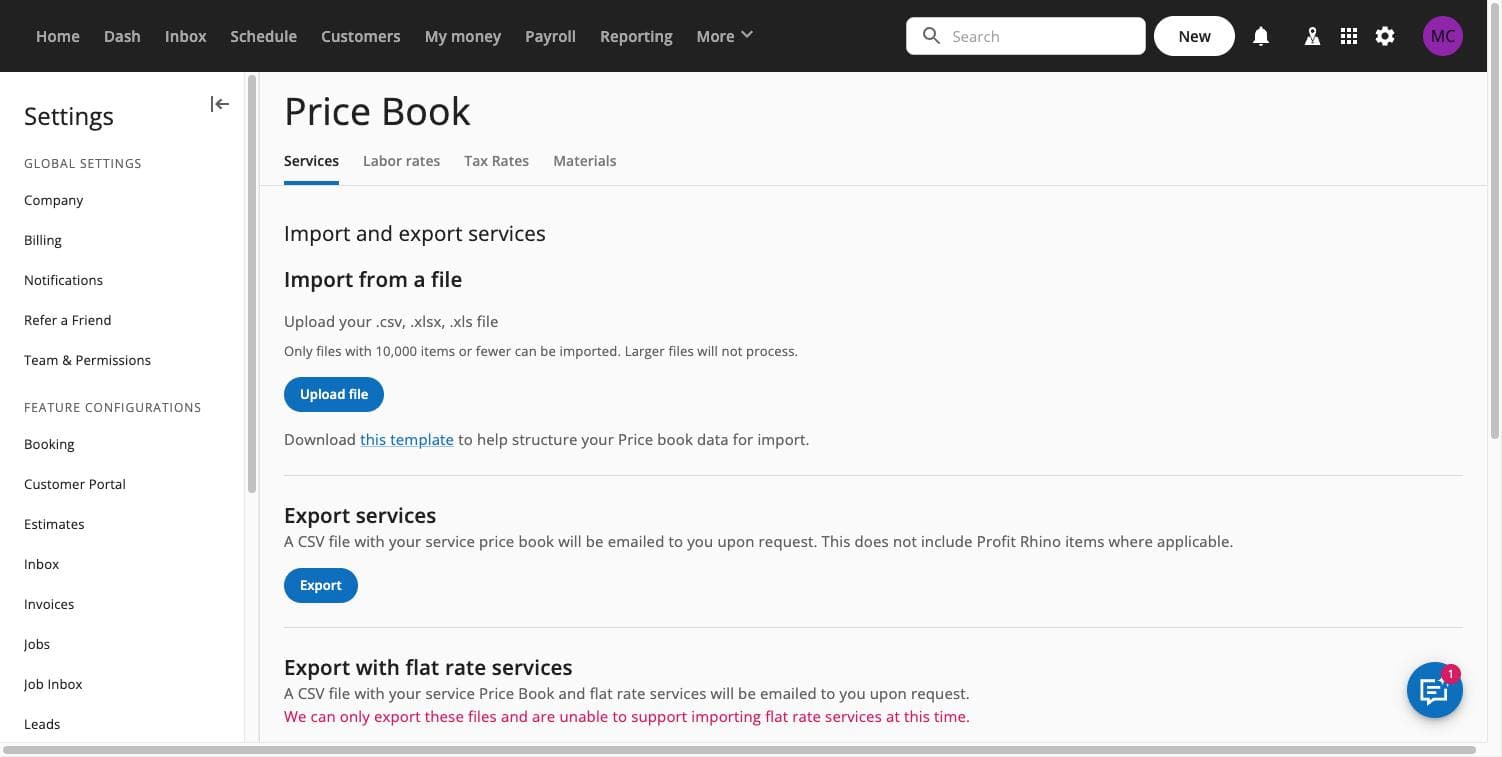
Log into Housecall Pro and go to your account settings. Look for the Price Book section — this is where HCP manages both your service catalog and your material list. You’ll see options to export your current price book and to import a new file.
Step 2: Export your current price book first (even if it’s empty)
Before importing anything, export what you already have. This does two things: it gives you a backup you can restore from if the import goes sideways, and it hands you a real HCP-formatted CSV with the exact headers your account expects. HCP export headers are lowercase and include columns you won’t think to add yourself, like industry_uuid, task_code, and online_booking_enabled. If you’re importing materials, you’ll also need part_number. (For a full walkthrough of the export and what every column means, see the price book export guide.)
Open the exported file in Google Sheets or Excel and leave the header row alone. This is the row that tells HCP what each column means, and it’s the most common place imports break.
Step 3: Fill in or replace your line items
Now edit the rows below the header. Each row is one service or material. A few things that matter here:
- Keep the Industry/category column filled in on every row. A blank or misspelled value in this column can fail rows, or fail the whole import, depending on how the file is structured.
- Don’t rename or reorder the header row. HCP maps columns by header name, not position, but a missing or renamed header will drop that column’s data on import.
- Use plain numbers for prices. No dollar signs, no currency symbols, no commas.
149.00, not$149.00. - Save as CSV, not XLSX.Excel and Sheets will try to save as their native format by default — explicitly choose “CSV (Comma delimited)” or “Download as CSV.”
Step 4: Import the file
Back in Price Book settings, choose Import and select your finished CSV. HCP will process the file and show you a result, usually a count of rows added or updated, and any rows that failed. Read this result screen carefully. It’s the fastest way to catch a bad row before it causes confusion out in the field.
Step 5: Spot-check in the app
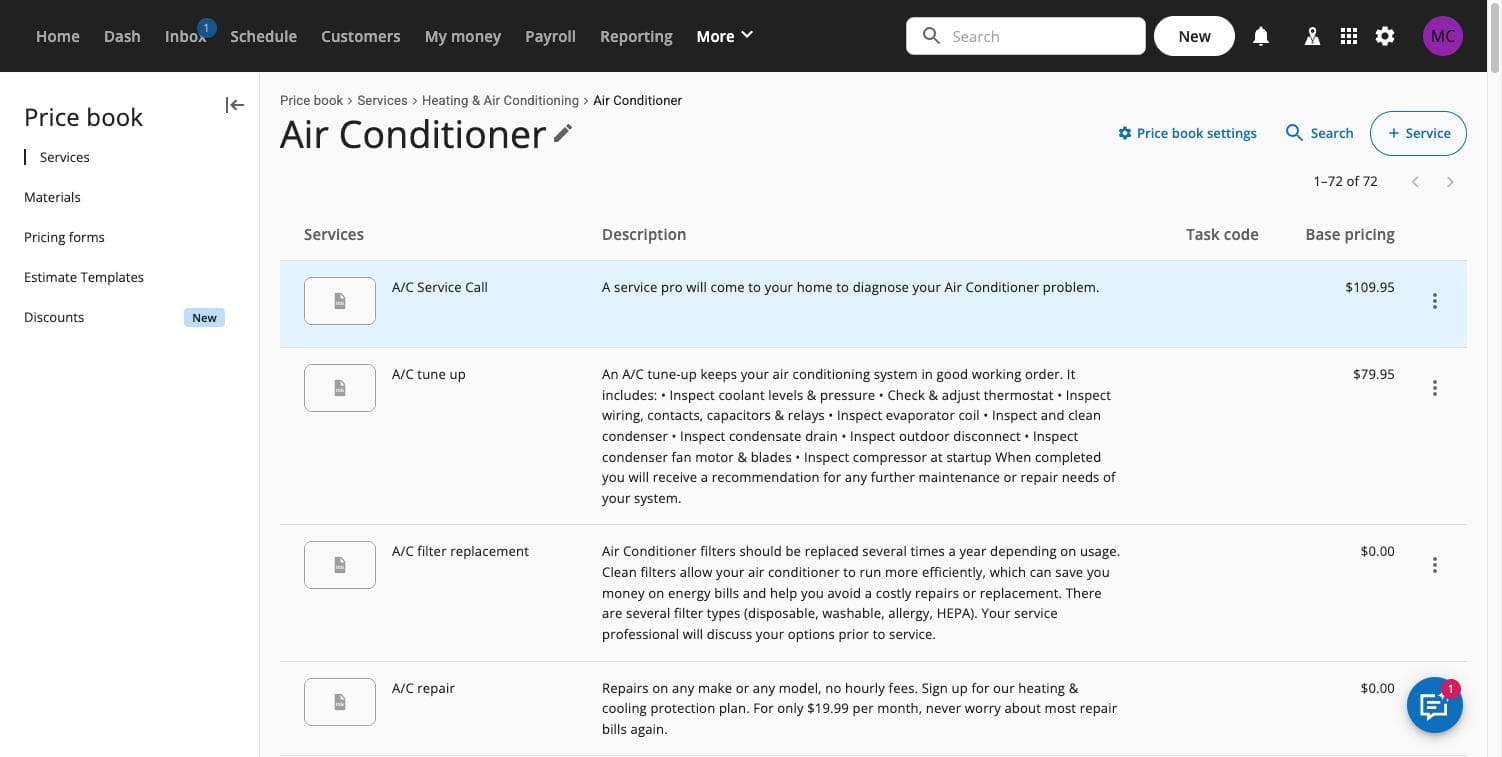
Open the Price Book from the main app (not settings) and check a handful of items across different categories. Confirm prices, descriptions, and categories landed where you expect. If you’re using online booking, check that the services you want customers to see have online_booking_enabled set correctly.
Step 6: Test with a real estimate or job
Before you trust the new pricing in front of customers, build a test estimate and add a few of the newly imported items. Confirm the price that shows up matches what you intended. This catches formatting issues, like a price that imported as text instead of a number, that don’t always surface on the import result screen.
If something went wrong
If rows failed or pricing looks off, don’t start guessing at the CSV. Check our price book import errors guide for the specific fixes to the most common failure causes: bad headers, invalid category values, encoding issues, and duplicate names.
Frequently asked questions
What are Services in Housecall Pro?
Services are the labor side of your Housecall Pro price book: each one is a named task with a description and a price that your techs add to estimates and invoices. They sit in the Price Book next to Materials, and they are what you import when you load a flat-rate book into HCP.
Does Housecall Pro come with HVAC services already priced?
No. Picking HVAC as your industry organizes the Price Book, but the service list you need at your rates is yours to build. Most shops either import a CSV they built themselves or start from the HVAC price book template and adjust the prices to their own labor and margin numbers.
Does importing a price book require the API or a paid HCP plan tier?
No. CSV export and import works through the standard Price Book settings on every Housecall Pro plan. No API access needed.
Will importing overwrite my existing price book?
It updates matching items rather than wiping everything: rows that match existing items by name or ID typically update them, and new rows get added. Export your current price book first so you have a backup before you import changes.
Can I import materials and services in the same file?
Materials need the part_number column, so they’re usually handled as a separate import or a separate section of your export. Check your exported file structure to see how your account organizes the two.
What’s the fastest way to build a price book if I don’t have one yet?
Start from the free HVAC price book template — it has the right headers already in place. If you want your pricing built around actual target margins instead of guesswork, that’s what The Margin-Right Rebuild is for.
Get unstuck faster
Use the free template as your starting structure, or run your current price book through the Margin Leak Finder first to see where your pricing is losing money before you re-import anything. Your data never leaves your browser. Or skip the spreadsheet work entirely: The Margin-Right Rebuild is a $249 one-time service where we rebuild your full price book at your target margins and hand you an import-ready file, backed by our 60-Day Ticket-Lift Guarantee: If your average ticket doesn't go up within 60 days of importing your new price book, we refund the full price — and you keep every file.