How to export your Housecall Pro price book
Exporting your price book from Housecall Pro takes under a minute, but the CSV you get back can be confusing if you weren’t expecting all the extra columns. Here’s how to export it, what each column actually means, and what’s worth doing with the file once it’s on your computer.
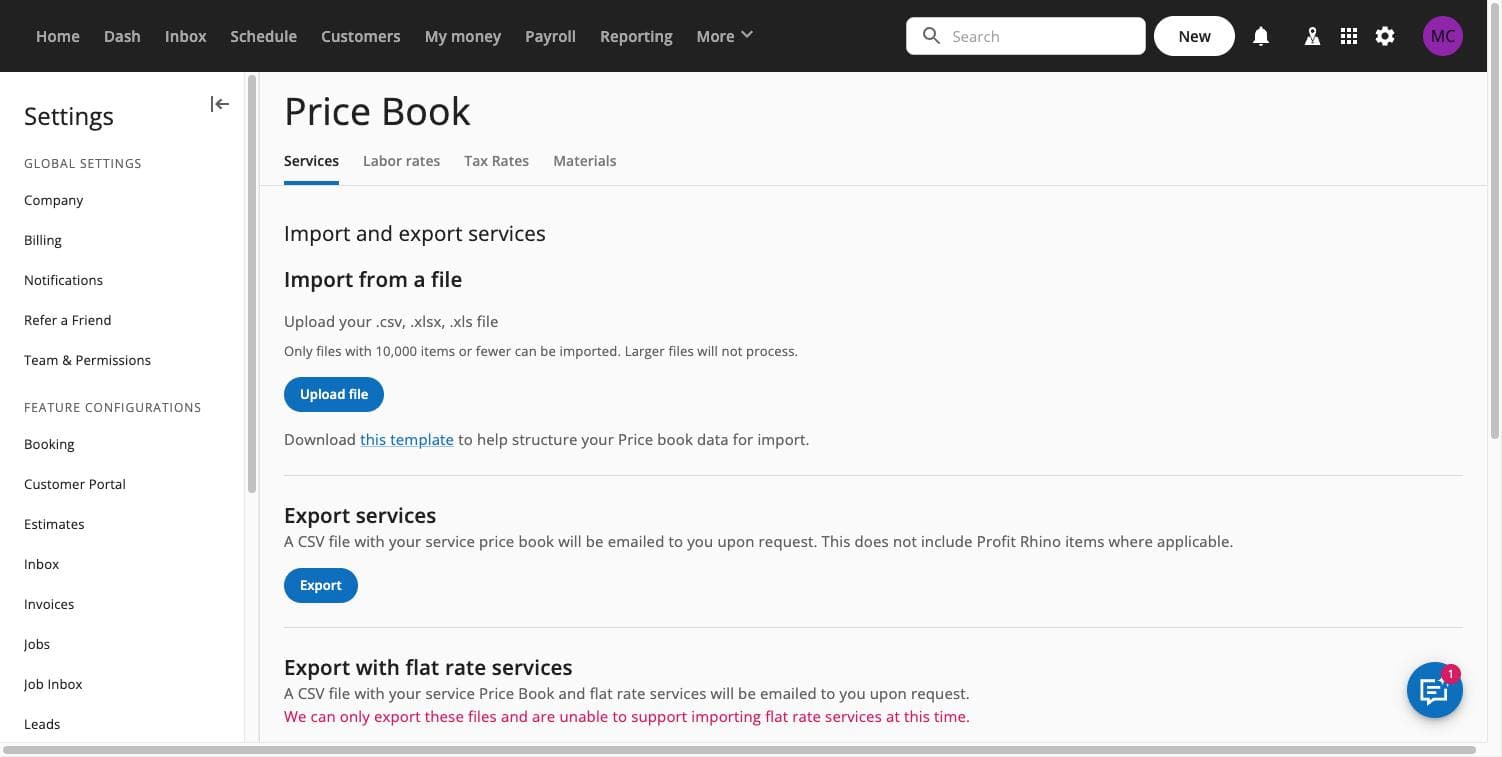
Step 1: Go to Price Book settings
Log into Housecall Pro and open your account settings. Find the Price Book section, this is where HCP manages both your export and import options for services and materials.
Step 2: Export to CSV
Select the export option. HCP generates a CSV file of your current price book and downloads it to your computer. Depending on how many items you have, this can take a few seconds.
Step 3: Open the file
Open the CSV in Google Sheets, Excel, or any spreadsheet tool. You’ll see one row per line item, service or material, with a header row across the top labeling every column.
What the columns actually mean
HCP’s export headers are lowercase and include more columns than most people expect. Here’s a rundown of the ones you’ll commonly see:
name– The item’s display name, what shows up on estimates and invoices.description– The longer text description customers see, if you use one.price– The current price for the item, as a plain number.industry_uuid– An internal ID tying the item to your account’s Industry/category setup. This is what makes the category grouping work, and it’s also why category values matter so much on import: this field has to match something HCP already recognizes.task_code– An internal reference code HCP uses to identify the task or service type.online_booking_enabled– Whether the item is visible to customers through your online booking flow, if you use that feature. This one matters if you’re trying to control which services customers can self-schedule.part_number– Present on materials rows, used to track specific parts or SKUs.
You likely won’t need to touch most of the internal ID columns (industry_uuid, task_code) unless you’re specifically reassigning categories. Leave them as-is unless you know what you’re changing.
What you can actually do with this file
Once you have the export, it’s useful for more than just a backup:
Audit your margins.Most price books drift over time. Services get added without a real cost calculation behind them, materials costs go up but prices don’t follow, and nobody notices until margins are already thin. Run your exported CSV through the free Margin Leak Finder to see which line items are priced below where they should be, based on your actual costs and target margin, not guesswork. The tool works entirely in your browser, so your pricing data never gets uploaded anywhere.
Make bulk price changes. Editing prices in a spreadsheet and reimporting is dramatically faster than clicking through items one at a time in the app, especially if you’re adjusting more than a handful of prices. See our guide on updating prices in Housecall Pro for the full workflow.
Clean up duplicates and inconsistent naming. Sort the exported file by name and category to spot items that are duplicated, inconsistently labeled, or missing a category assignment entirely. This is much easier to catch in a spreadsheet than scrolling the app.
Keep a real backup.Before you make any bulk changes or reimport anything, export first. If an import doesn’t go the way you expect, having the original file means you can see exactly what changed and, if needed, reimport the original data.
Common export confusion
“Why does my file have so many columns I don’t recognize?” Internal fields like industry_uuid and task_codeexist so HCP can map your data correctly, both for display and for future imports. They’re not meant to be edited by hand in most cases.
“The prices look right in the app but wrong in the export.” Check the price column for formatting, sometimes a spreadsheet tool will auto-format a price column as currency or text, which can look different from the raw number HCP stored. The underlying value in HCP is a plain number.
“I can’t find the export button.” It’s inside Price Book settings, not the main Price Book view in the app. Settings and the day-to-day app view are separate places in HCP.
Frequently asked questions
Do I need an HCP add-on or higher plan tier to export my price book?
No. CSV export is available through standard Price Book settings on every Housecall Pro plan.
What format does Housecall Pro export as?
CSV (comma-separated values), which opens in any standard spreadsheet tool like Excel or Google Sheets.
Can I edit the exported file and reimport it?
Yes, that’s the standard workflow for bulk price or catalog changes. See our guides on updating prices and avoiding import errors before you reimport.
Is my price book data safe if I upload it to a margin analysis tool?
Only if the tool processes it locally instead of uploading it. The Margin Leak Finder processes your CSV entirely in your browser, so your pricing data is never uploaded to a server.
Do something with that export
Now that you’ve got the file, don’t let it sit in a downloads folder. Run it through the free Margin Leak Finder to see where your current pricing is leaving money on the table, no upload required, it all happens in your browser. If the audit shows your price book needs more than a few tweaks, The Margin-Right Rebuild is a $249 one-time service: we rebuild your full price book at your target margins and hand you an import-ready file, backed by our 60-Day Ticket-Lift Guarantee: If your average ticket doesn't go up within 60 days of importing your new price book, we refund the full price — and you keep every file.