How to update prices in Housecall Pro
There are two ways to change prices in Housecall Pro: edit items one at a time in the app, or export your price book, edit it in a spreadsheet, and reimport it. Which one you should use depends on how many prices you’re changing.
Here’s both methods, plus how to tell when a quick price bump isn’t actually the fix you need.
Method 1: Update prices one-by-one in the app
This is the right call when you’re changing a handful of items, fixing a single mispriced service, or making a one-off adjustment.
Step 1: Open the Price Book
From the main Housecall Pro app (not settings), go to your Price Book. You’ll see your services and materials organized by category.
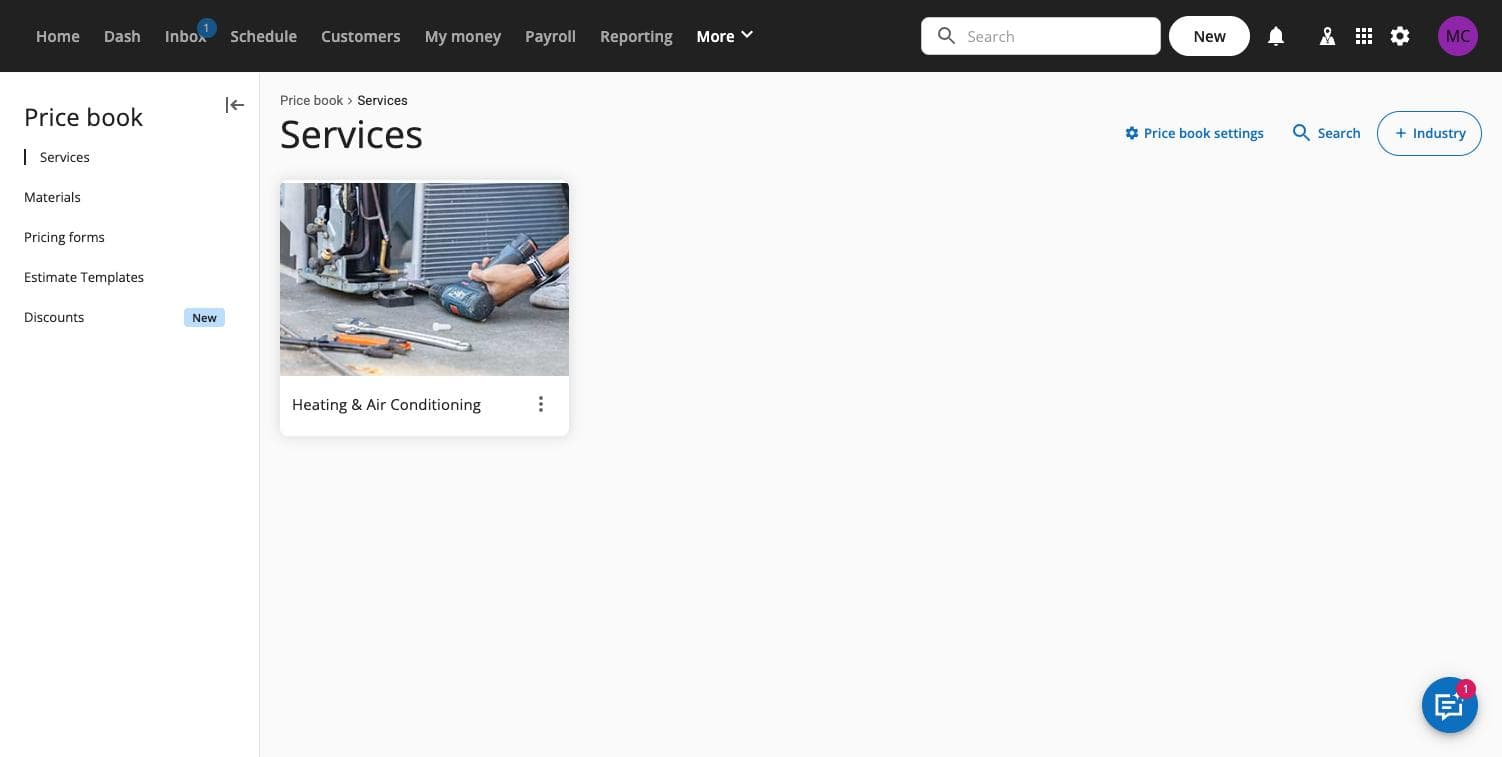
Step 2: Find and select the item
Search or scroll to the item you want to update. Open it to see its full details, including current price, description, and category.
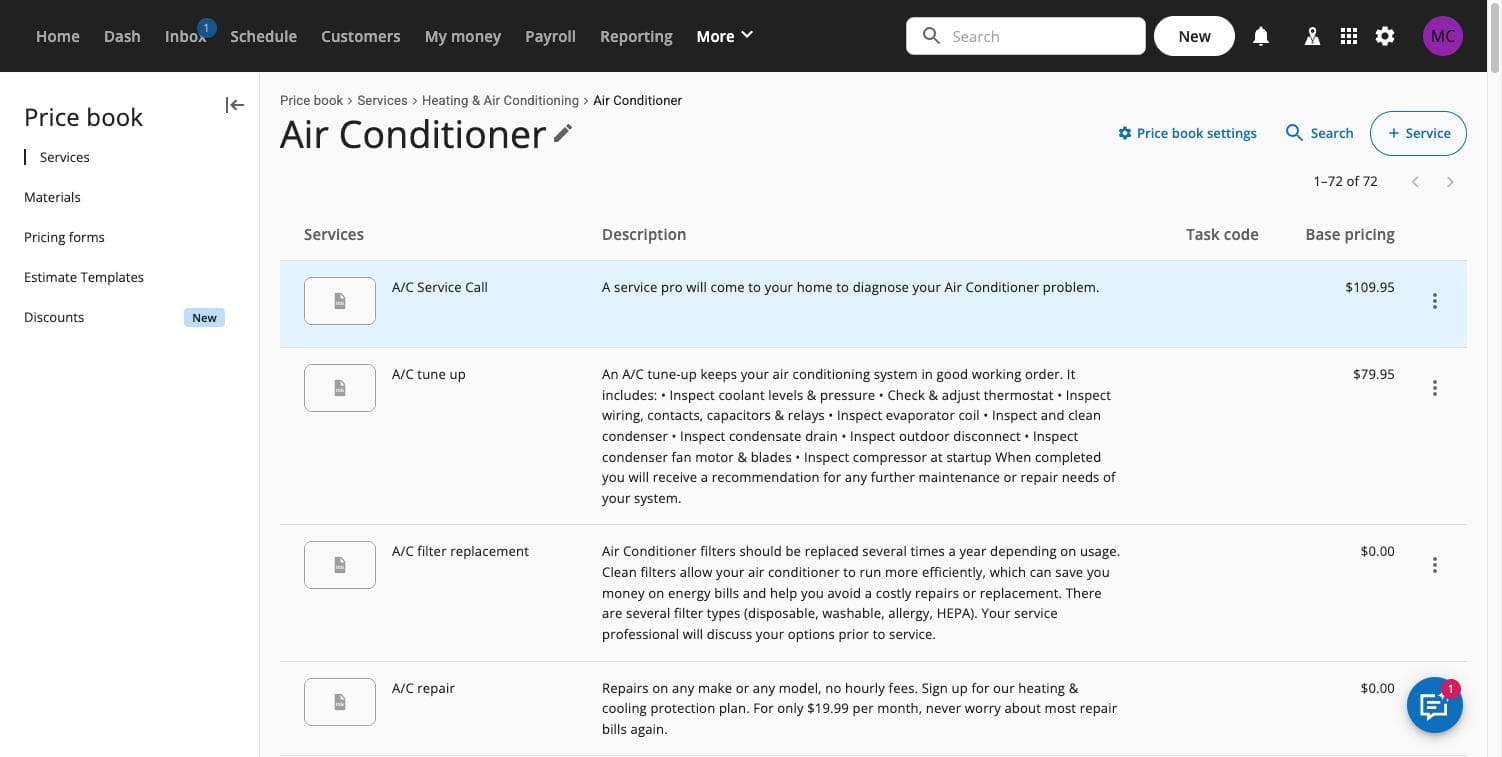
Step 3: Edit the price and save
Update the price field and save. The change applies going forward, on new estimates and jobs. It typically doesn’t retroactively change pricing on estimates or invoices you’ve already sent.
Step 4: Repeat for each item
There’s no bulk-select in this view for pricing changes. If you’re updating more than 10 or 15 items this way, you’re better off switching to the export/edit/import method below, it’s faster and less error-prone than clicking through dozens of individual items.
Method 2: Bulk update via export, edit, import
This is the right call when you’re adjusting prices across a category, applying a percentage increase, or touching more than a handful of items at once.
Step 1: Export your current price book
In Price Book settings, export your price book to CSV. This gives you every current item, its price, and its category in one file, with the exact column headers your account uses. (Full walkthrough of the export and its columns in the price book export guide.)
Step 2: Open the file and make your changes
Open the CSV in Google Sheets or Excel. A few ways to update prices efficiently:
- Flat percentage increase: Add a formula column that multiplies the price column by your increase (for example,
=B2*1.08for an 8% increase), then paste the results back into the price column as values. - Category-specific changes: Sort or filter by category, then update just the rows that apply.
- Individual line-item changes: Edit cells directly if it’s a smaller set of specific items.
Leave the header row and every other column untouched. Only change what you mean to change.
Step 3: Save as CSV
Save as CSV (UTF-8 if your spreadsheet tool offers that option specifically) rather than the native spreadsheet format. This avoids encoding issues that can corrupt special characters on import.
Step 4: Reimport the file
Back in Price Book settings, import the edited file. Rows matching existing items by name typically update in place rather than duplicating.
Step 5: Spot-check before you trust it
Open a few updated items in the app and confirm the new prices show correctly on a test estimate. If anything looks off, check our price book import errors guide for common causes.
When a price bump isn’t the real fix
Raising prices by a flat percentage is fast, but it doesn’t fix the underlying problem if your price book was never built around actual margins in the first place. A few signs you need more than a price update:
- You’re guessing at your percentage increase rather than calculating it from labor cost, material cost, and target margin per item.
- Some services are wildly more profitable than others, but you’re raising everyone’s price by the same amount.
- You’ve never actually calculated your real margin per line item, you’re pricing based on what competitors charge or what feels reasonable.
- Your price book was inherited from a previous system, a franchise template, or an employee who’s no longer there, and nobody’s audited it since.
If any of that sounds familiar, a flat increase treats the symptom, not the cause. What you actually need is a rebuild that starts from your real costs and target margins per line item, not your current prices plus a percentage.
Frequently asked questions
Does updating a price in the app change it on estimates I’ve already sent?
No, typically. Price changes apply to new estimates and jobs going forward. Existing sent estimates and invoices keep the price that was locked in when they were created.
How many items do I need to change before bulk import is faster than editing in the app?
About 10 to 15 items is the tipping point — there’s no hard rule, but past that the export/edit/import workflow is almost always faster and reduces the risk of missing one.
Can I apply different percentage increases to different categories in one import?
Yes. Sort or filter your exported CSV by category, apply a different formula or manual adjustment to each group, then reimport the whole file at once.
Should I raise all prices by the same percentage?
Only if your price book was already margin-accurate to begin with. If some services carry higher material or labor costs than others, a flat increase keeps the imbalance instead of fixing it.
Get your pricing actually right
Before you apply a flat increase, run your current price book through the free Margin Leak Finder to see which line items are actually underpriced relative to their cost, not just which ones feel low. Your CSV never leaves your browser. If your price book needs more than a percentage bump, that’s what The Margin-Right Rebuild is for: a $249 one-time service where we rebuild your full price book at your target margins and hand you an import-ready file, backed by our 60-Day Ticket-Lift Guarantee: If your average ticket doesn't go up within 60 days of importing your new price book, we refund the full price — and you keep every file.